Troubleshooting & FAQs
Look for answers to those crazy problems that stump us in myWSU, SOC, and more.
Basics for the new scheduler
Access and Training to receive access to the Schedule Builder Applications and training on using them.
Deadlines lists the academic deadlines for creating the Schedule of Classes.
Proofing has pages for getting starting, understanding GUCs, Instruction Modes, Room Assigning, Standard Meetings.
Instructions show you how to use the Canvas components, Maintain Schedule of Classes (MSC), Instructor Advisor Table, Start a New Course, and OBIEE Reports. Run a OBIEE Report to find the status of the schedule of classes for a specific term.
The Schedule Builder applications are described in the Instruction pages. The most common applications are:
Maintain Schedule of Classes: for most editing.
Schedule Class Meetings: for updating instructor and meeting pattern in combined classes.
Start New Course: to start a course that you can't find in Maintain Schedule of Classes.
Maintain LMS Course Spaces: to manage your Canvas course space.
Request a General University Classroom (GUC): visit Maintain Schedule of Classes (MSC) > Meetings tab.
Unapproved sections: Set the Facility ID to GUC_TBS in the Meetings tab.
Approved sections: Leave a Notes/Request in the Meetings tab.
Find an available GUC: Create a Room Search Event in 25Live and search for an available room, then request it in MSC. You can also use myWSU > Class Facility Usage to find available rooms.
Use Schedule New Course to start a class that is not present in Maintain Schedule of Classes.
Steps to cancel a section:
Change Enrollment Capacity to 0 to stop enrollment in Maintain Schedule of Classes Enrollment tab.
Run a Class Roster to notify students that the class is cancelled. Do this BEFORE you leave a Notes/Request as this is not available once the class is cancelled.
Leave a Notes/Request in the Meetings tab of MSC to cancel the class. Please date and initial the request.
Instructor Advisor Table and more
Adding an instructor, TA, or Administrative Support person to the Instructor Advisor Table can be tricky. If you don't know how to add someone to the table, use our instructions for adding a person to the Instructor/Advisor Table.
What goes wrong when you add a person to the table but can't add them to a class?
The Effective Date must be BEFORE the start of the term where access is needed. The application defaults to today's date, so you must backdate the entry before saving. If you have the wrong date, email us. Recommended dates:
Fall: 8/1/xx
Spring: 1/1/xx
Summer: 5/1/xx
The Academic Organization is not correct. Our recommendation is to use the "Related Content" link within Maintain Schedule of Classes to access the Instructor/Advisor table. This allows you to see the Academic Organization code that is use for the specific class where access is needed. Most organizations have more than one option, and the code must match the class.
There is not a row for each campus. If an instructor is teaching a videoconference or blended class, they need a row for each campus where access is needed.
When the "Instructors for Meeting pattern" is grayed out, the course is in a combined section. You can edit it in the Schedule Class Meetings application. Access it within Maintain Schedule of Classes using the "Related Content" link in the upper right corner or at Curriculum Management > Schedule of Classes > Schedule Class Meetings.
The RONet Schedule of Classes feeds from myWSU and will list the Primary Instructor when a single instructor is coded as primary. When more than one instructor is listed as primary, "multiple" will be listed and the remaining instructors will be available when the user opens the class.
If a TA or secondary instructor has "Print" checked in Maintain Schedule of Classes in the "Instructors for Meeting Pattern" area, they will be visible when the user follows the link to open the class. Only the primary instructor is visible on the main page.
Canvas
When the Override checkbox does not work and you do not have options to flag, merge, or extend course spaces, there are several reasons why this is occurring:
Department schedulers do not have Edit access after classes have started.
The section is in the Sub-Group: AOI.
The section is for a term that was offered in the past.
Your Campus Scheduler can flag, merge, or extend the course space.
RONet's Schedule of Classes
Schedule of Classes (SOC), at schedules.wsu.edu, is popular for its convenient layout. Maintained by the Pullman Office of the Registrar and EIT, it updates every 90 minutes. MyWSU's Class Search is the official SOC.
Check to see if the class is visible in myWSU's Class Search. myWSU is the official Schedule of Classes.
If the class is visible in myWSU's Class Search, several factors impact visibility.
Enrollment Capacity is set at 0 in Maintain Schedule of Classes > Meeting tab.
The RONet SOC is not "live". It updates approximately every 90 minutes. Look for the last update time at the top of the page when viewing a subject.
Some processes run once daily or just a few times daily. If you have added a new class, or the class was recently combined, it may be visible tomorrow.
Some errors in myWSU will prevent a class from being visible in the RONet SOC.
Double quotes ( " ) from the SOC Notes. Replace them with single quotes ( ' ).
Duplicate section numbers.
More than one Primary Instructor listed.
Several factors will impact visibility of a class section in the Schedule of Classes:
"Print Schedule" is NOT checked in Maintain Schedule of Classes (MSC) > Basic Data tab. This setting rolls from the previous term; we do not recommend that you uncheck the box to hide a section.
"Approved" is not checked in MSC > Basic Data tab.
Course has not been Activated yet. Pullman campus actives Approved sections on the next business day. Other campuses do not activate approved sections immediately.
Reasons for hiding a section from the Schedule of Classes.
No instructor yet
Enrollment
New Coug Orientation
Options for hiding a section
Set enrollment capacity at 0. This doesn't hide the section in myWSU.
The course has been coded Department Consent Required in Maintain Schedule of Classes.
Maintain Schedule of Classes
To add a new Non-Enrollment section, an extra step is required to set it as Non-Enrollment.
Start a new section
IMPORTANT! Set Associated Class to "9999".
Save the section
Change Class Type to "Non-Enrollment Section".
Update the Associate Class, if desired.
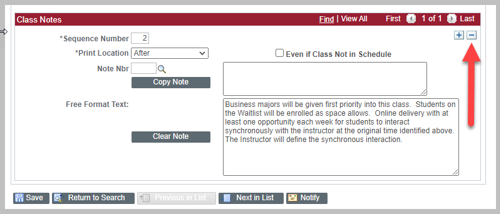
It is possible to change the Free Format Text of a SOC Note, but you cannot save a blank note. If you simply remove the text or select "Clear Note", myWSU will not allow you to save the section. To completely remove a SOC Note, use the "+/-" buttons on the right side and select "-" to delete that Sequence Number.
Wrong Sequence Number
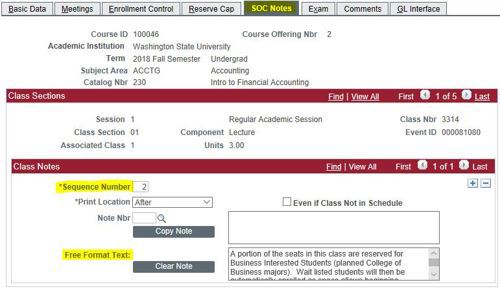
SOC Notes use Sequence Number to determine the type of note to display.
Sequence Number 1: URL or link
Sequence Number 2: Free Format Text
Although myWSU will allow you to add additional Sequence Numbers, only Sequence Number 2 will display Free Format Text in Schedule of Classes. You can have Sequence Number 2 without a Sequence Number 1.
Use "View All" to show all notes if you do not see the note you want to work on.
Note in the wrong place
The SOC Note must be in the Free Format Text box to be visible in SOC. If you utilized one of the pre-built SOC Notes by entering a Note Number, you must either select "Copy Note" to move the note to the Free Format Text area or copy/paste the note into the Free Format Text area. Text in the upper box will not display. List of available notes.
If your class is not available in Maintain Schedule of Classes (MSC), and you have access to other classes for the same subject in the application, the class needs to be started in the application Schedule New Course at Curriculum Management > Schedule of Classes > Schedule New Course. You may also use the "Related Content" link in the upper right corner within MSC.
Within Schedule New Course follow these steps to start a course:
Use Search to find the desire catalog number and select the class.
If the catalog number is not available, contact us for more help. If this is a brand new course, it may not be set up yet.
Start a section. Select a session, section number, and instruction mode, then SAVE. Do not continue to update the course in this application - your updates will not be saved!
Open the new section in Maintain Schedule of Classes to continue setting up the new section.
Look for two meeting times. Delete the facility from the second meeting time, save, then add both at the same time.
Add Meeting Start Time first, save, add facility ID.
Please allow 2-3 business days for your Campus Scheduler to make updates based on your Notes/Requests. If a Notes/Request has been acted on, it will be cut from the Notes/Request field and copied into the Comments field. If your Notes/Request is dated and it has been in the Notes/Request field longer than a few days, contact your Campus Scheduler.
Do not start your Notes/Requests with a "/". Our OBIEE report will not pull these notes and they will be missed.
If you get an Associated Class error when adding a new section to an existing course, and there is not a problem with your Associated Class, try this fix.
Return to Search and don't save what you've done so far. It's not saving anyway.
Got back into the course and select "+" to start a new section.
If Approved Section automatically checked, uncheck it now.
Enter "1" for the Session and the desired settings for Section Number and Associated Class.
SAVE. If the course saves, you may update the other elements on the page, including the correct Session number.
If the course does not save, contact your Campus Scheduler for assistance.