OBIEE Reports & Data Validation
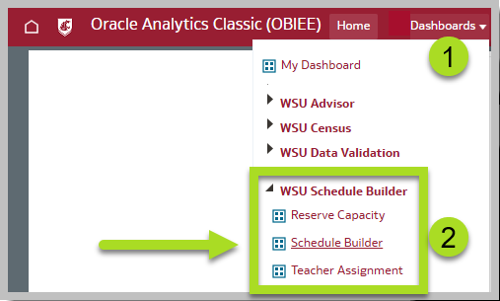
Access OBIEE Reports from myWSU under the Main Menu. Department Schedulers will use the Dashboards WSU Schedule Builder and WSU Data Validation.
myWSU > OBIEE Reporting > Dashboards > WSU Schedule Builder
Access to this dashboard requires the role: W BI SCHEDULER. Information about requesting roles in myWSU for department schedulers.
WSU Schedule Builder has three sets of reports:
Schedule Builder
Reserve Capacity
Teacher Assignment
myWSU > OBIEE Reporting > Dashboards > WSU Data Validation > Teacher Assignment > Individually Taught Courses
Use the Teacher Assignment dashboard, and especially the "Individually Taught Classes" report, to find errors with instructor load and classes with enrolled students and no instructor assigned. Instructors must be assigned for grading - more information on Grading. Fix missing instructor errors using Enrollment Request.
myWSU > OBIEE Reporting > Dashboards > WSU Enrollment Summary Reports > Enrollment Summary Reports
A Census day snapshop of enrollment including some class information as far back as 2012; helpful for previous term enrollment numbers. The recommended report for this purpose is:
Schedule of Class (Census or End of Term)
Other reports:
Enrollment Summary
Detailed Enrollment Summary
Waitlist by Class
Schedule of Group Taught Class
Schedule of Individually Taught Class
Instruction Mode Summary Info
Instruction Mode by Subject
Department Schedulers should validate the scheduling data for their department no later than Friday 5pm on the second Friday of the term. Verify that the reported information is correct on the listed reports.
WSU Data Validation: Teacher Validation
Using the WSU Data Validation dashboard.
Group Taught Not 100% Load
Group Taught Primary Instructor
Individually Taught Classes
Individually Taught Classes Duplicate Instructor
WSU Census: Courses
WSU Census > Courses > Self-Sustaining courses
Add an instructor to a student's class registration using Enrollment Request
myWSU > Records and Enrollment > Enroll Students > Enrollment Request
Enter student information:
Student ID
Academic Career (UGRD, etc.)
Academic Institution (WSUNV)
Term
Select "Add"
Action: Normal Maintenance
Class Nbr: Use the magnifying glass to find the class
Instructor ID: Use the magnifying glass to add the correct instructor. If the instructor is not listed, they need to be added to the class in Maintain Schedule of Classes.
Select: "Submit"
OBIEE Basics
Mozilla Firefox, Google Chrome, and Microsoft Edge work for OBIEE Reports.
Pop-up blocker must be OFF.
Most reports will export with duplicate rows. This occurs because a row is added when there are multiple values in the same field. For instance, if two instructors are listed, two copies of the class information will export, one with each instructor listed. Class Attributes will also create extra rows. Information on Exporting reports to Excel and removing duplicates.
Use the dropdowns to filter an OBIEE report for the specific information desired. Filter options will vary by report. Schedule Builder reports provide live data from myWSU, primarily from Maintain Schedule of Classes (MSC). Most Schedule Builder Reports will have options for:
Term: listed by term code, example: 2237
Campus: listed by campus code, example: PULLM
Academic Group or Academic Org (Organization)
Subject
Catalog Nbr (Catalog Number)
Class Status: Active, Cancelled Section, Tentative Section
Enrl Status: Open, Closed
Approval Ind (Approved Checkbox in MSC): Approved, Unapproved
Combined Section (Combined in the Combined Section Table): Combined Section, Uncombined Section
With Comments: Y (Comments added to the Comments field in MSC
With Notes/Requests: Y (Notes/Request in Meetings tab in MSC)
Crse Attr (Course Attribute): XLST, CONJ, COOP, VC, etc.
Crse Attr Value (Course Attribute Value): CONJOINT, FIELD TRIP, ORIGINATING CAMPUS, etc.
Each report will have options to customize the report for the information you need now. You will have options to set Term, Campus, Subjects, and more. Save time by saving the customization so that you can easily apply them on the next visit.
Set the custom fields as desired
Select the gear in the upper right corner
Choose Save Current Customization... and name the customization. If you want this customization to be your default, check the "Make this my default for this page" checkbox. The image below shows example names.
Apply Saved Customization to use a saved customization.
Edit Saved Customizations to remove old customizations.
Clear My Customization to clear the fields in the current report.
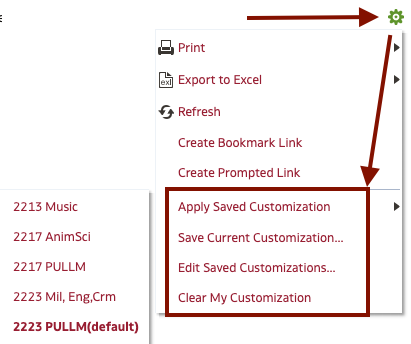
Refresh an OBIEE report: Select the gear in the top right corner, then Refresh.

Schedule Builder Reports provide information from Maintain Schedule of Class (MSC) in myWSU. The user will note that there may be multiple lines of data for a single class section. OBIEE adds a row when a field in MSC has more than one value. Fields that may have more than one value include: Instructor, Class Attributes, SOC Notes, Meeting Pattern. When a single row is desired in the export, the user can export to Excel and use "Remove Duplicates" to remove the extra rows (if the multiple values are not needed) or manually merge the information.
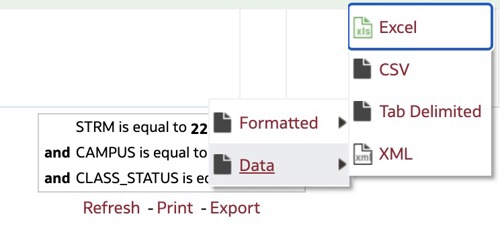
Your report is now open in an Excel Spreadsheet.
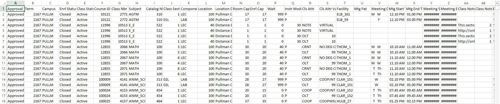
Remove duplicates in Excel
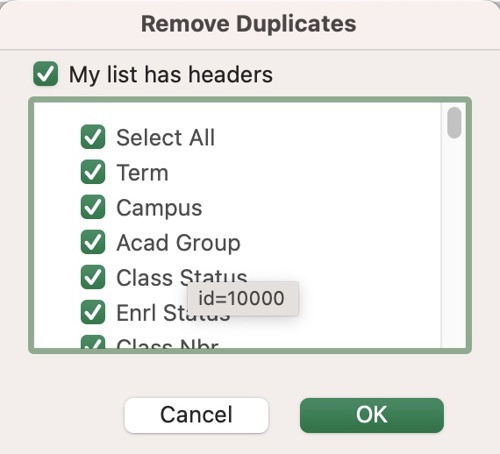
Select all the rows and columns.
Data tab > Remove Duplicates

In the Remove Duplicates window uncheck: Select All
For a single line report: check Class Nbr
To show all meeting patterns, also: check Meeting Days & Mtg Start Tm
Select "OK".
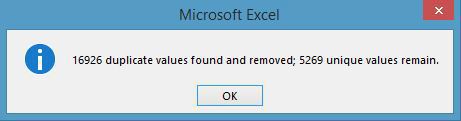
This tells you how many duplicate values were removed and how many remain.
Click OK.
Now your report is much more manageable.
Schedule Builder Reports
This report is available as a dropdown option from Schedule Builder Reports. This report was originally designed to provide a single row report and does not include Class Attributes and Instructors. It has the least number of fields and is best when a concise list of classes is desired.
myWSU > OBIEE Reporting > Dashboards > WSU Schedule Builder > Schedule Builder
Schedule Builder Reports were updated in 2022 and provide live data from myWSU's Maintain Schedule of Classes. The primary report is: Schedule Builder Reports. This report uses a dropdown under the search fields to Select the View you wish to use. If you are viewing a report, you can use the left Approval Ind: Approved/Unapproved to view just approved or unapproved sections. If you plan to export the report, you MUST use the center search fields to filter the data that exports. For example, if you only want approved courses, use the upper Approval Ind: NULL/Approved/Blank/Unapproved field instead of the side dropdown.
Approved/Unapproved Course Report. Lists courses by approval status. Update the center Approval Ind if you plan to export the report.
Combined/Uncombined Course. The combined report lists classes in the Combined Section table. Shows Primary Instruction section and LMS flagging. The uncombined report lists classes that should be combined.
Comments: Shows the Comments field. Update the center With Comments field to export only sections with Comments.
New Condensed Schedule Builder. Pared down list of classes intended for schedulers.
Notes/Requests: Shows the Notes/Requests field. Update the center With Notes/Requests field to export only sections with Notes/Requests.
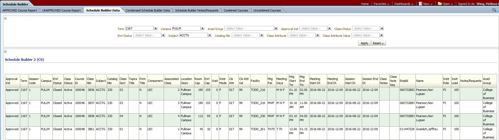
Schedule Builder Data. Comprehensive list of classes an information. Melissa's favorite.
Simplified SBD. A single line report. Jill's favorite. Does not include Instructors nor Class Attributes. Use for bulk Instruction Mode submissions. (It may not be working like this at this time...)
Legacy Schedule Builder Reports
These reports may still be visible in the Schedule Builder workspace.
Schedule Builder Dataset: The master dataset. It may not load; it is VERY large. Do not use.
Schedule Builder Notes/Requests. Used by Campus Schedulers to find new Notes/Requests from the Meeting tab.
Schedule Builder Comments. Used by Department Schedulers to find comments from Campus Schedulers.
Exam Notes. Used by Campus Schedulers to find new Final Exam Notes/Requests from the Exam tab.
Combined Courses. Listing of classes that are in the Combined Section table. Shows Primary Instruction section and LMS flagging.
Uncombined Courses. Courses that are not in the Combined Section Table but should be (XLST or CONJ Class Attribute)
Final Exam. Lists Final Exam information once it has been added by the Campus Scheduler.
Older Data
Census Day reports for older terms can be found back to 2012 in WSU Enrollment Summary Reports. The RONet Schedule of Classes shows data prior to 2012.
Listing of classes based on the status of the Approved checkbox in Maintain Schedule of Classes > Basic Data tab. Approved classes may not be currently Active; this status is updated by the Campus Scheduler. On the Pullman Campus, Fall/Spring approved classes will be automatically activated on the next business day. Pullman Summer classes are schedule by the Global campus and are activated when the Global campus is ready to send the class to the LMS (Canvas).
Using the report
This report has an additional dropdown option on the left side of the screen to filter Approved/Unapproved sections that filters the screenview. Note that this dropdown does not impact the exported version of the report. Use the center filter fields when the report will be exported.
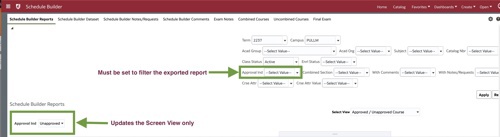
Suggested uses:
Follow-up on sections that were previously Approved have remained Approved. Occasionally, myWSU removes the checkmark prior to Activation.
Verify room assignment (Facility ID), units, capacities, day/time, and primary instruction section for uncombined sections.
Example of Approved Class Report
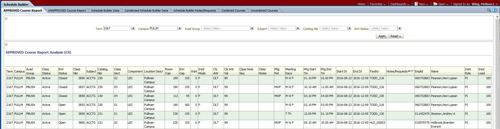
Unapproved class troubleshooting
Example of a subject, AMDT, that has no Approved classes for the term.
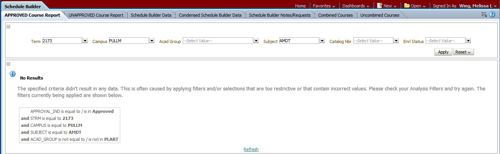
Reasons why a class may be unapproved
myWSU removed the Approved check. This is a known glitch. Always follow-up that classes remain Approved until they are Activated.
Class requires additional review and comments have been left by the Campus Scheduler. Activation is pending until further information is received.
Summer/Winter/Global: Classes are activated when they are ready to be sent to the LMS (Canvas). Contact the Global Campus if a class has not been activated and there is a question.
Classes MUST be Approved in Maintain Schedule of Classes. Classes approved in Schedule New Class will not remain Approved.
Listing of class sections that have been combined in the Combined Section Table. Sections in the Combined Section Table include: crosslisted, conjoint, blended, and videoconference sections. Department schedulers can view combined sections in Maintain LMS Course Sections > View Combined Section Details link. More information about Combined Sections. More information about using Maintain LMS Course Spaces.
Using the report
This report has an additional dropdown option on the left side of the screen to filter Combined/Uncombined sections. This dropdown filters the screenview only. If you wish to export the report, you must set the Combined Section dropdown filter in the center area.
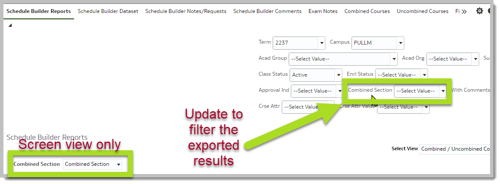
Example of Combined Course report
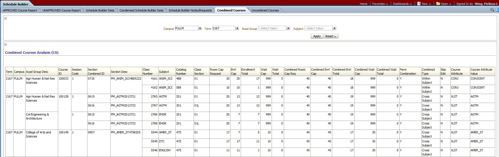
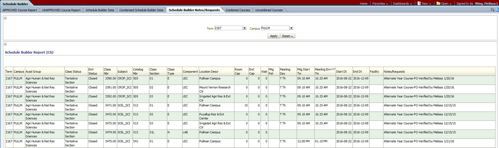
The dashboard has two versions of the Notes/Request reports which show similar data. The original report, Schedule Builder Notes/Requests, is frequently used by Campus Schedulers who have other processes built on the formatting of this report. The Pullman Campus Schedulers use this report. The newer report, Notes/Requests, is accessed from Schedule Builder Reports in the "Select View" dropdown. This report has a separate left dropdown, With Notes/Requests, to filter the screenview results. If the report will be exported, be sure to set the center filter dropdown "With Notes/Requests".
The Schedule Builder Notes/Requests report shows all of the sections that have a note/request in the Notes/Request field on the Meetings Tab regardless if the section is Approved or Unapproved.
Sections may have multiple lines showing because there may be more than one Meeting Time listed.
Notes/Requests are removed/moved to the Comments Tab if they require further action by the Department Scheduler or have been processed/completed by the Campus Scheduler.
This report was originally developed for department schedulers who wish to see all data for a section. It shows fewer columns than the Schedule Builder Data report but more than the Simplified SBD report.
Schedule Builder Data
This report has the most fields and is the largest report. Use this report if you need the maximum information. This report is primarily used by Campus Schedulers.