MSC: Enrollment Tab
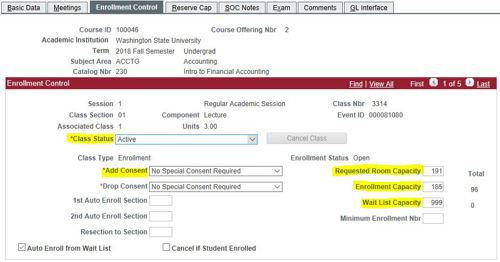
Class Status dropdown
The Class Status dropdown determines whether a section is visible in myWSU Class Search. This field will be updated by the Campus Scheduler when the Approved checkbox is checked.
Active
This class section is:
Approved by the department scheduler. Sections are automatically activated on the Pullman/Everett campuses on the next business day. The Campus Scheduler at Global, Tri-Cities, Everett, and Spokane campuses will manually activate approved courses after reviewing them. Allow several days for processing.
Visible in myWSU Class Search and RONet Schedule of Classes on the Schedule of Classes live date.
Spring: October 1 or the next business day.
Summer: November 1 or the next business day.
Fall: March 1 or the next business day.
Tentative Section
This class section is:
Not active and not visible in myWSU nor RONet Schedule of Classes.
May be approved, but not yet activated. Pullman/Everett campuses will automatically activate approved/tentative sections on the next business day.
May be a cancelled section. See instructions for Cancelling a Section.
Will be copied/rolled/cloned to the new term when the new term is created.
Fall is copied to Fall
Spring is copied to Spring
Summer is copied to Summer
Cancelled Section
This class section is:
Cancelled per a request of the department scheduler in Notes/Requests. See instructions for Cancelling a Section.
Marked un-approved on the Basic Data tab.
Not visible in myWSU nor RONet schedule of classes.
Not copied when the term is copied/rolled/cloned.
May be re-activated; leave a Notes/Request as the class will not automatically activate on the Pullman/Everett campuses.
May be re-created using Schedule New Course.
Facility ID and Meeting pattern are removed from cancelled sections.
Stop Further Enrollment
Use to stop students from enrolling.
Used to stop enrollment while giving students time to drop the course themselves.
Hides the course in myWSU and disables the Wait List.
Add Consent dropdown
This dropdown may be set to Department Consent Required or No Special Consent Required. Currently, department schedulers have access to edit this field, even when a class is approved.
Department Consent should NOT be added when a class has the Pre-Requisite "By Permission". This Pre-Requisite is listed in the Catalog and is automatically added via the catalog. Department Coordinators can enroll students using Class Permissions and by checking the Requisites Not Met checkbox.
Department Consent Required
Used to limit enrollment to those with department permission.
Students cannot self-enroll.
The Class Number is not visible on the RONet Schedule of Classes.
Instructor Consent Required
This option isn't used.
No Special Consent Required
Default selection.
Students can self-enroll.
Requested Room Capacity
Requested Room Capacity (RRC) is available to the department scheduler until the approved checkbox is checked. This field is used by the Optimizer to assign rooms and determines the maximum capacity allowed in the Enrollment Capacity field.
Default capacity is 30 when a new section is created. As this determines requested room size, be sure to update the field if you do not need a room that large. 14% of GUCs are smaller than 30 seats.
Use Notes/Requests to request an increase in RRC. The Campus Scheduler will not increase RRC beyond the capacity of the assigned room; you may need to utilize 25Live to find a different space if you wish to also increase Enrollment Capacity.
Combined Sections are different
The Requested Room Capacity of each section in a combined section will be added together to determine the overall requested room size. This is an important consideration, as an error in RRC may prevent the class from receiving a room.
Example 1: Correct RRC in sections
A room seating 100 students is desired.
Section 1: RRC 25
Section 2: RRC 25
Section 3: RRC 50
Total requested room size: 25 + 25 + 50 = 100 Overall RRC. A room seating 100 can be assigned.
Example: Incorrect RRC in sections
A room seating 100 students is desired.
Section 1: RRC 100
Section 2: RRC 100
Section 3: RRC 100
Total requested room size: 100 + 100 + 100 = 300 Overall RRC. A room seating 100 cannot be assigned, and it is likely that the class will not receive any room due to space limitations.
As the examples show, there is a significant difference in expected room size when the wrong Requested Room Capacity is used.
Enrollment Capacity
The Enrollment Capacity field determines the total number of students who may enroll in the class. It is limited by Requested Room Capacity. The field may be changed by the department scheduler at any time, including after a section has been approved.
Default capacity is 30 for new sections.
Leave a Notes/Request to increase Enrollment Capacity above the current Requested Room Capacity (RRC). The Campus Scheduler will update the RRC field to allow Enrollment Capacity to be increased.
Waitlist Capacity
Waitlist Capacity determines the number of students that can be added to the waitlist. Students on the waitlist will automatically be enrolled in the course when enrollment capacity is increased, Reserve Capacity is removed, or students drop the section through the fifth day of instruction.
Recommended Waitlist Capacity: 999. This allows the department so see how many students would have enrolled to improve planning for future terms.
Waitlist Capacity may be edited by the department scheduler, including after a section has been approved.
The Enrollment Control tab displays the number of students enrolled to the right of Enrollment Capacity under the "Total" header. The number of waitlisted students is displayed below, to the right of the Wait List Capacity field.
"Auto Enroll from Wait List" is automatically checked during the period starting after the Schedule of Classes is posted through the 5th day of instruction. This checkbox allows students on the waitlist to automatically be enrolled when there is availability in the section.
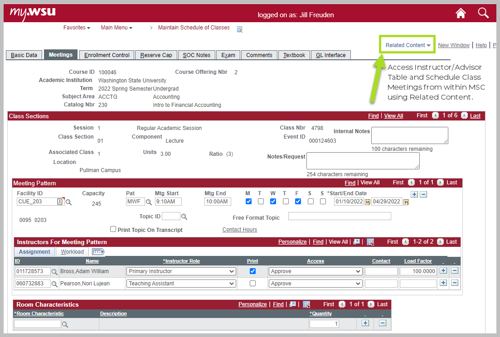
Related Content
Used to access Instructor/Advisor Table or Schedule Class Meetings from within Maintain Schedule of Classes. The other applications will open below MSC.
Combined Sections
Taught in the same room at the same time. More information on Combined Sections. Meeting information must be edited in Schedule Class Meetings. View class combinations in LMS Data for Classes.
