LMS Management in myWSU
Manage LMS Course Spaces may be edited for courses in sub-account "Credit" through the 5th day of the term. Starting the 6th day of term, request changes in myWSU > Maintain Schedule of Classes > Meetings tab > Notes/Requests.
The LMS Components
Two LMS components are used to manage courses in Canvas, or any future Learning Management System (LMS). Changes in these components take 2-3 hours to update to Canvas.
Sub-accounts
Credit: Department schedulers have access to override configuration.
AOI: Global Campus Schedulers have access to override configuration in this sub-group.
VC: Pullman Campus Schedulers have access to override configuration in courses in this sub-group.
Maintain LMS Course Spaces
Department Schedulers have access to edit Maintain LMS Course Spaces (excluded AOI Sub Account) through the second day of the term. Leave a Notes/Request in Maintain Schedule of Classes to request updates after these dates.
The new component is used to manage LMS course spaces. Presently, Canvas is the available Learning Management System (LMS). As other LMS options are available, this component will be used to flag and manage those LMS options, too.
Navigation
myWSU > Curriculum Management > Schedule of Classes > Maintain LMS Course Spaces
Maintain Schedule of Classes > Related Content dropdown > Maintain LMS Course Spaces
Search Criteria
Use the listed fields to filter criteria and find the desired course(s). Academic Institution should be set at WSUNV. The search results will show two new columns:
LMS Sub Account - most sections will be Credit or AOI.
Combined Section - Y indicates that section is combined in the Combined Section Table.
Use Maintain LMS Course Spaces to...
View status or flag a single section, combined section, or group of sections for LMS > Canvas.
View status or allow Waitlisted students access to the flagged LMS.
View status or extend the end date of the LMS course space to 1-4 years.
View status or set the Primary Section for combined sections or merged sections.
View status or merge the LMS course space for sections that are not combined.
View status or remove sections from a merged LMS course space.
View sections that are in the Combined Sections Table.
Department Schedulers can...(Credit Sub Account)
Flag courses for the LMS
Allow waitlisted students access to the LMS
Extend the end date of the LMS to 1-4 years
Merge sections to share the same course space until the first day of term.
Change the Primary Section until the first day of the term.
Your Campus Scheduler can... (Credit Sub Account)
Change the Primary Section after the first day of the term.
Global Campus Schedulers can...
Update sections in the AOI Sub Account.
Leave a Notes/Request in Maintain Schedule of Classes for short messages. Email Online Registrar for more complicated requests.
AOI Sub Account is View Only
Global Schedulers only have access to edit LMS course space for sections that are in the AOI Sub Account. There are many reasons for this - the most important being that many other processes are impacted by changes to the courses space and restricting this to the Global Campus team means that your course space will work better.
Sections in the AOI Sub Account
Blended with Global online sections
Is my section in the AOI Sub Account?
Search Criteria lists the sub account in the search results.
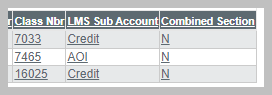
The sub account is listed to the right of Override LMS Sub Account. This field is View Only.


Contact Global Campus Schedulers to:
Make any change to a section in the AOI Sub Account
Flag the section for LMS
Override end date
Select Primary Section
Add or delete sections in a merged group
Use Notes/Request in Maintain Schedule of Classes for short notes. Email Global Campus for longer requests.
View Only for all Sub Accounts
Override the LMS Sub Account
Select a Borrowed Section
Contact the Global Registrar to request changes to sections in the AOI Sub Account or leave a Notes/Request in Maintain Schedule of Classes.
All sections, whether combined, merged, or single sections, are flagged in the new Maintain LMS Course Spaces component. Sections will no longer be flagged in Maintain Schedule of Classes nor the Combined Section Table.
Select the section
Select the Override Configuration checkbox (temporary requirement)
Select the LMS from the dropdown
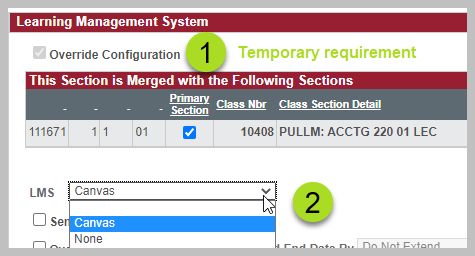
Global Campus Schedulers edit classes in the AOI Sub Account. Email Online Registrar or leave a Notes/Request in Maintain Schedule of Classes.
KB Articles
Waitlisted students do not have early access to the LMS course space unless Send Waitlisted Students to LMS is checked. While this can be a convenience, this can also cause confusion for students who do not realize that they are not yet enrolled.
Select the section
Select the Override Configuration checkbox (temporary requirement)
Check the Send Waitlisted Students to LMS checkbox
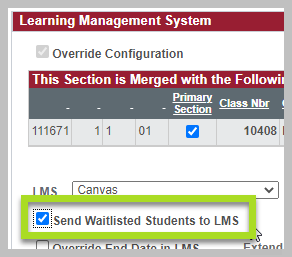
Global Campus Schedulers edit classes in the AOI Sub Account. Email Online Registrar or leave a Notes/Request in Maintain Schedule of Classes.
Students and instructors retain access to Canvas course spaces after the course end date. Canvas course spaces will be placed into a read-only state 1-2 weeks after the official course end date. Selecting to Override End Date in LMS keeps the course space open for edits and submissions by students for the length selected (1-4 years).
Select the section
Select the Override Configuration checkbox (temporary requirement)
Check the Override End Date in LMS checkbox
Select the time period in the Extend End Date By dropdown
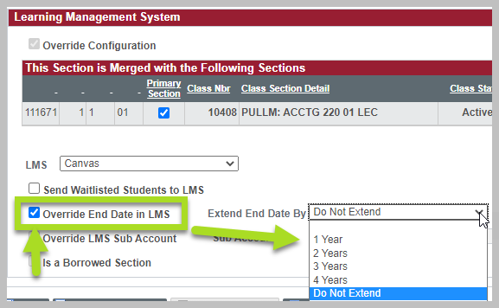
Global Campus Schedulers edit classes in the AOI Sub Account. Email Online Registrar or leave a Notes/Request in Maintain Schedule of Classes.
The LMS course space is tied to the Primary Section Class Number in myWSU. When class sections are merged and the Primary Section is changed, a new LMS course space is created. The original course space is not deleted, however the course will not have access to it. Crimson Service Desk can help retrieve the missing content. The content will be visible if the original class is made the Primary Section.
Considerations before merging or changing Primary Section
Has the instructor created content in the course space?
Have students posted messages or assignments to the course space?
If content is present, and is needed, copy the content before merging or changing the Primary Section.
As long as the Primary Section remains the same, additional courses can be added to the merge. Content from those sections will not be added to the course space.
Impacts of changes in myWSU on Canvas data
Student data is tied to enrollment in a course space and assignment submissions belong to the course space where submitted. Submissions cannot be moved to another course space.
Merged or combined course spaces belong to the primary instruction section. If the primary section is changed, a new course space is created. Content and data do not move to the new space.
More information in Confluence: Impacts of Changes in myWSU on Canvas Data.
Recommendation: The instructor should export Gradebook and download submissions in advance of changing the primary instruction section.
Sharing a course space
When two or more sections are combined in the Combined Section Table or merged in Maintain LMS Course Space, they share the same course space. The Primary Section determines which course space is hosts the content.
Primary Section
IMPORTANT! Once the Primary Section is set, and the class is activated, any change to the Primary Section will result in a NEW course space being created. Content from the previous Primary Section does not automatically move to the new Primary Section. Always copy the content before changing the Primary Section. Contact Crimson Service Desk to retrieve content from another course space.
Deadline to change Primary Section
First day of the term.
How to merge course spaces
Select the section that will be the Primary Section.
Select the Override Configuration checkbox (temporary requirement)
Select the "+" to add a new section to the merged group.

Add the Class Number of a section you wish to add. Use the Filter By dropdown and the Class Number magnifying glass to find a listing of sections.
Same Course ID: Filters to sections with the same Course ID on all campuses.
Same Subject: Filters to sections with the same Subject on all campuses.
Same term: Filters to sections on all campuses by term.
More filters are available when you select the Class Number magnifying glass.
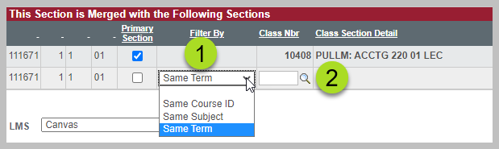
Continue adding classes until the merge group is complete.
Select the Primary Section using the Primary Section checkbox (if different).
Save.
Considerations
Changing the Primary Section creates a NEW course space. This is not recommended after content has been added. If a mistake occurs, contact Crimson Service Desk.
Classes that are recorded, such as videoconference classes, have FERPA considerations when merged with classes that have external viewers. Review the Class Recording Retention Policy for more information prior to merging non-related classes in the same course space.
Global Campus Schedulers edit classes in the AOI Sub Account. Email Online Registrar or leave a Notes/Request in Maintain Schedule of Classes.
Maintain LMS Course Spaces updates hourly. Please allow at least an hour after creating a new class in Schedule New Classes to populate in the LMS components.
Maintain LMS Users
If an administrative support person needs access to Canvas, with or without grading access, use Maintain LMS Users to add this access. Instructors and TAs are added in Maintain Schedule of Classes and do not need to be added to this component.
This component is used to give users access to Learning Management System (LMS) course spaces. Canvas is the current LMS, though if other LMS options become available, this component will be used to manage the users for them as well.
Navigation
myWSU > Curriculum Management > Schedule of Classes > Maintain LMS Users
Query to view User Roles
myWSU > Reporting Tools > Query > Query Viewer
CANVAS_LMS_PRS_CAMPUS_ALL
Use this component to Add, Remove, or View users in the course space.
Administrative Support : Instructor level access to the LMS with Gradebook access in Canvas. If access to myWSU's Grade Roster is needed: More information about the grading role SR59 - Enter Grades.
Administrative Support No Grade Access : Instructor level access to the LMS without Gradebook access.
Content Reviewer: Instructor level access to the LMS without Gradebook access. Used to add a reviewer to a previous term. Example: New instructor wishes to review the previous instructors content.
Mentor: Class participant in the LMS. No gradebook access.
Tutor: Observer in the LMS. No edit access.
Student: Incomplete access to the LMS. May only be assigned to a student with an Incomplete grade. Gives access to the current term only. Contact Crimson Service Desk to add students to a previous term.
If a section is combined in the Combined Section Table or merged in Maintain LMS Course Spaces, adding a user to one section gives access to all sections.
Instructions for submitting Final Grades via Canvas
Admin Support access is required for each course within Maintain LMS Users.
myWSU's Grade Roster is available to Instructors & TAs with Approve Grade access and to administrative personnel with the role: WSU CS SR59 Enter Grades. SR59 gives access by subject prefix and should be reserved for permanent department personnel.
Knowledge Base Article How To Access myWSU Grade Roster as Admin Support.
Maintain Schedule of Classes no longer has an Admin Support role.
Students who need access to a course space to complete an Incomplete may be added two ways:
Add the student to the current course space with Maintain LMS Users. The Department Scheduler can do this.
Add the student to the previous course space by contacting Crimson Service Desk (CSD). CSD can conclude the course for other students and allow access for the incomplete student for up to one year. Other students will have View Only access to the space.
There are benefits to either way of providing access. Ultimately, the choice of which option to choose is up to the instructor.
When courses are merged in Maintain LMS Course Spaces, only the "parent" or Primary Instruction Section needs to be updated in Maintain LMS Users.
Supporting Information
All sections each belong to a Sub Account which impacts who can manage the LMS course data. Credit and AOI are the most common sub-accounts.
Credit - Most courses. Used for courses that are not blended or VC. Department Schedulers have access to manage the course data.
AOI - Blended courses. Used for courses that are blended with Global. Global Campus Schedulers edit classes in the AOI Sub Account. Email Online Registrar or leave a Notes/Request in Maintain Schedule of Classes.
VC - Videoconference classes. Leave a Notes/Request in Maintain Schedule of Classes to update the LMS for these sections.
Pearson and Pilot - Few courses. Used for courses that are not blended or VC and are part of the initial Canvas Pilot or the Pearson group. Department Schedulers have access to manage the course data.
How do I know if a section is in a Combined Section?
When the search criteria column "Combined Section" value is "Y", the section has been combined in the Combined Section Table.
Within Maintain LMS Course Spaces you will see View Only link to the Combined Section Table. Campus Schedulers can edit the maximum Requested Room Capacity, Enrollment Capacity, and Wait List Capacity for the entire Combined Section in this table.
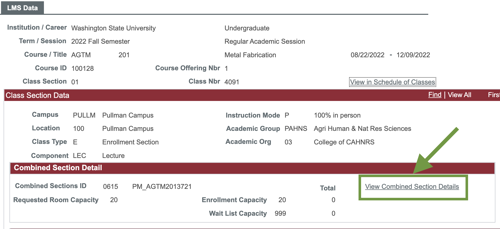
Combined sections are:
Crosslisted sections
Conjoint sections
Videoconference sections
Blended sections
Merging class sections in the LMS does not impact the course evaluations - they are handled as they were prior to the merge.
Combined Sections: Course evaluations are processed together.
Merged Sections (not in the Combined Section Table): Course evaluations are processed for each course separately.
A merged group that includes sections that are in the Combined Section Table: Classes in the combined section table will be processed together. Classes that are not will be processed separately.
View the Knowledge Base Article
A class section must be Approved, Active, and flagged for Canvas to create a course space.
Approved: Maintain Schedule of Class (MSC) > Basic Data tab > Approved checkbox
Active: MSC > Enrollment Control tab > Class Status dropdown > Active
LMS: Canvas > Maintain LMS Course Spaces > LMS dropdown > Canvas
Publish a Canvas course space for student view.
Course Sections Activations
Each campus determines separate procedures for the timing of Activating a course after the Approved checkbox is checked.
Pullman campus sections are automatically Activated the next business day.
Everett, Spokane, Tri-Cities, and Vancouver campus sections are manually Activated by the Campus Scheduler. Please allow several days for the process to complete.
Global campus Activates courses after the design and production teams have completed reviews and the Global campus is ready to clone the course space. Sections will be activated by the time Schedule of Classes goes live and/or before students can register.